
Switch from Evernote to Apple Notes Easily
Productivity, Business Systems
How to Move from Evernote to Apple Notes Without Losing Your Mind (or Your Systems)
Feeling stuck between years of notes in Evernote and the simplicity of Apple Notes? This step‑by‑step guide walks you through a clean, organised move so your business systems stay intact and your brain gets some much‑needed breathing room.
Why Small Business Owners Are Moving from Evernote to Apple Notes
If you run a small business, chances are Evernote has become a catch‑all: ideas, meeting notes, procedures, receipts, half‑finished plans. Over time, it can feel like a digital junk drawer. Apple Notes, on the other hand, is fast, built into every Apple device, and surprisingly powerful for day‑to‑day business operations. For many clients at The Business Classroom, switching to Apple Notes is part of simplifying and professionalising their systems.
On top of that, Evernote’s rising subscription costs have become harder to justify when you’re already paying for the Apple ecosystem through iCloud, devices, or Apple One. For a lot of small business owners, it feels like paying twice for the same basic capability: storing and syncing notes. Moving to Apple Notes lets you make better use of what you’re already investing in, without another separate line item on the budget.
This isn’t about chasing the “shiny new app.” It’s about choosing a tool that’s easy to maintain, integrates smoothly with your Apple ecosystem, and doesn’t require constant fiddling. The goal: clarity, not complexity.
Step 1: Decide What Actually Needs to Move
Before you touch a single export button, pause. An educational shift like this starts with one key question: What do I still use? Not everything in Evernote deserves a new home in Apple Notes. Moving junk from one app to another just gives you prettier chaos.
Keep: current procedures, client notes, templates, checklists, content ideas, and reference material you use at least a few times a year.
Archive: old projects, past clients, and anything you may need for record‑keeping but don’t use day‑to‑day.
Delete: duplicates, half‑baked ideas you’ve clearly moved on from, and irrelevant notes.
💡 Pro Tip: Give yourself a clear time limit for this review—say, 60–90 minutes. You’re aiming for “good enough to move,” not “perfectly curated for eternity.”
Step 2: Export Your Notes from Evernote
Once you’ve trimmed the clutter, it’s time for the technical part of this how‑to: getting your information out of Evernote safely. The exact clicks can change with updates, but the educational principle is the same—export in a format that keeps structure where possible and is easy to reference later.
On your computer, open Evernote and select the notebook (or group of notes) you want to move.
Use the export option to save your notes as .enex files and store them in a clearly named folder on your computer.
Create a folder on your computer called something like “Evernote Archive – Do Not Delete” and store all exports there so you always have a backup copy of what you moved.
Think of this as your safety net. Even if you don’t import every single note into Apple Notes, you’ll still have a complete, searchable backup outside Evernote if you ever need it.
Step 3: Design a Simple Apple Notes Structure First
Before importing anything, decide how Apple Notes will support your business operations. At The Business Classroom, we encourage owners to build systems that a future team member could understand in five minutes, not five weeks.
In Apple Notes, use folders and sub‑folders to mirror how your business actually runs, for example:
Operations – procedures, onboarding steps, checklists, templates
Clients – one folder per client or per client type, depending on volume
Money & Admin – receipts, reference numbers, policies
CEO Space – strategy notes, ideas, goals, and planning pages
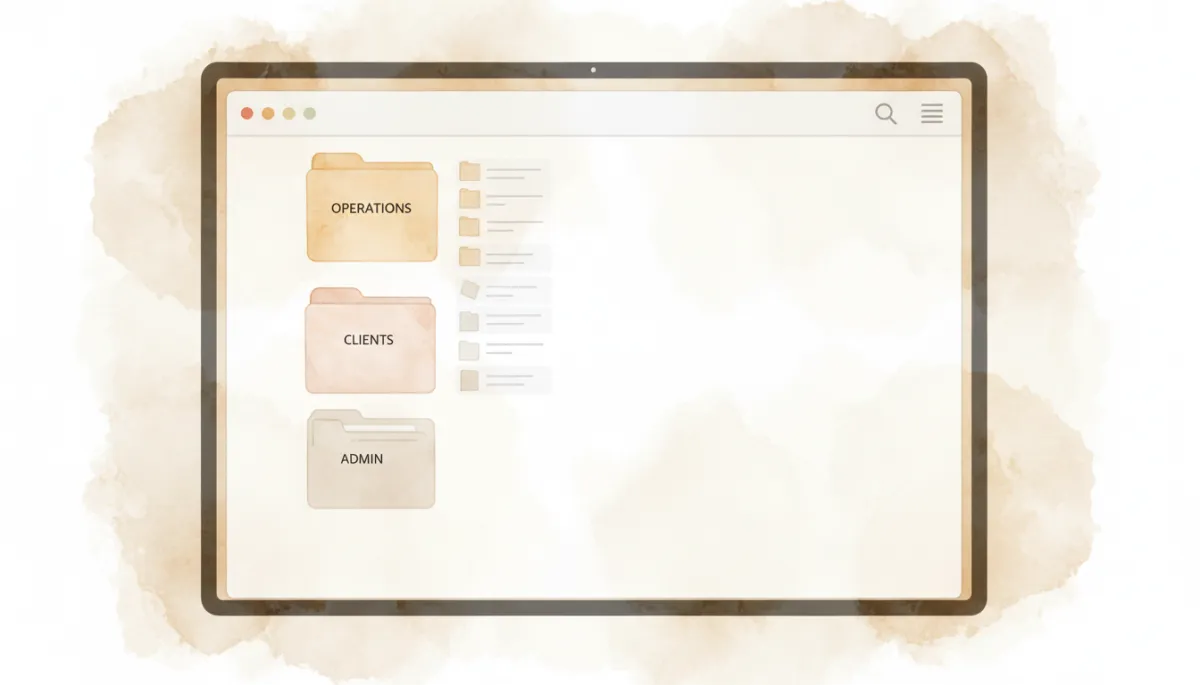
A simple folder structure turns Apple Notes into a lightweight business knowledge base.
Step 4: Bring Notes into Apple Notes Intentionally
There isn’t a single perfect “one‑click” importer that respects every tag, notebook, and attachment from Evernote. That’s why this move works best as a curated migration, not a blind transfer. Once you’ve exported your notes as .enex files, you can use Apple’s built‑in import to keep things simple and reliable.
Import your .enex file into Apple Notes: In Finder, locate the folder where your .enex file is saved. Right‑click the file and select “Open with Notes”. Apple Notes will import that file as a new folder, with your notes and their attachments pulled in.
Rename the imported folder: In Apple Notes, find the newly imported folder and rename it to something that makes sense for your system—such as the original Evernote notebook name or the client/project it relates to.
Move notes into your structure: Drag and drop notes from the imported folder into the correct Apple Notes folders you created in Step 3. Attachments come along for the ride, so you’re not losing key files as you reorganise.
⚠️ Warning: Don’t shut down your Evernote account immediately. Run both systems in parallel for at least a few weeks while you confirm that everything you need regularly is accessible and working smoothly in Apple Notes.
⚠️ Important: Ensure you cancel your Evernote subscription - remembering the big green buttons are NOT to cancel; they are to keep you, so ensure you read each page - there are about 4 to cancel. Please ensure you receive a cancellation notification so you don't continue paying for something you no longer use.
Step 5: Turn Apple Notes into a Reliable Business System
Moving your notes is only half the story. To truly replace Evernote, you need simple habits that keep Apple Notes clean and trustworthy for you and your team. A few no‑nonsense guidelines:
Use clear, consistent titles that start with what the note is about, not a clever phrase.
Add a short “header” line to key notes, such as “Last updated: 2026‑08‑01 – Owner: Sarah”.
Use checklists for recurring tasks and procedures so your team can literally tick through the steps.
Once a month, do a 15‑minute “Notes tidy” to archive or delete what’s no longer needed.
When to Get Help with Your Migration
If your Evernote is holding years of business history, this move can feel heavy. You’re not just moving notes—you’re reshaping how your business stores knowledge. That’s exactly the kind of work we do at The Business Classroom: turning messy, overgrown systems into clear, sustainable ones your future team can actually use.
If you want a done‑with‑you or done‑for‑you migration—where we map your structure, clean up the clutter, and set up Apple Notes (and your other tools) to support real business growth—book a VIP Implementation Day, a focused Business Audit, or a Quick Fix Tech Session. You bring the chaos; we’ll bring the system.


